
User Journey
This page shows what the user sees inside the widget. It maps each screen to the widget event that it sends. Privy operates each screen. The merchant builds only the host page around the widget.
Both data packages use the same journey. The package changes only the data that the merchant receives. The screens show the mobile size.
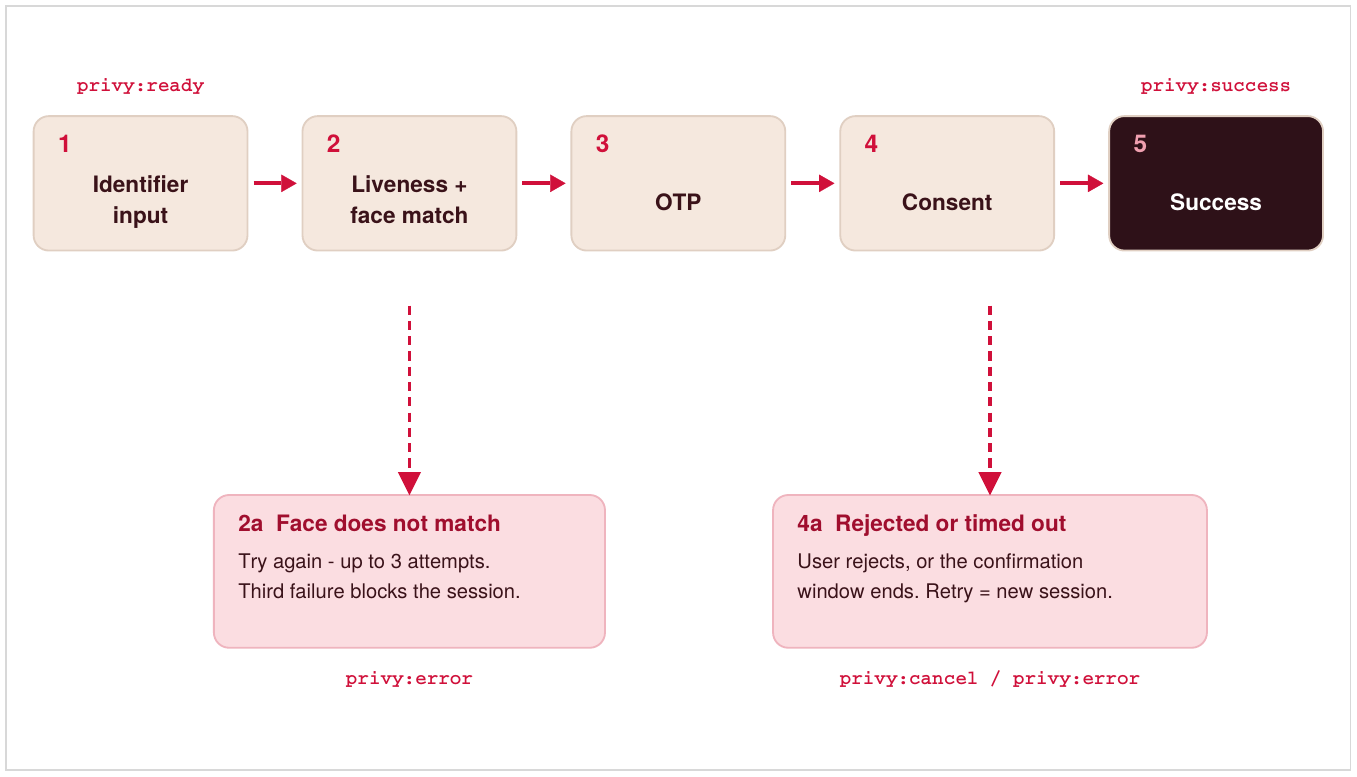
| Step | Screen | Widget event |
|---|---|---|
| 1 | Identifier input | privy:ready on startup |
| 2 | Liveness, then automatic face match | None |
| 2a | Face verification failed | privy:error after the third failure |
| 3 | OTP | None |
| 4 | Consent | None |
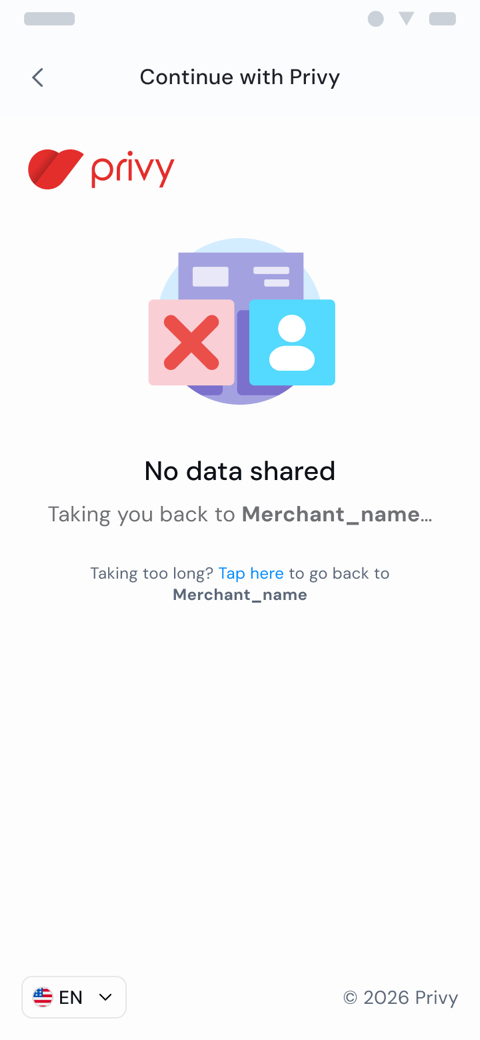
| 4a | No data shared: rejected or timed out | privy:cancel if rejected. privy:error with session_expired if timed out. |
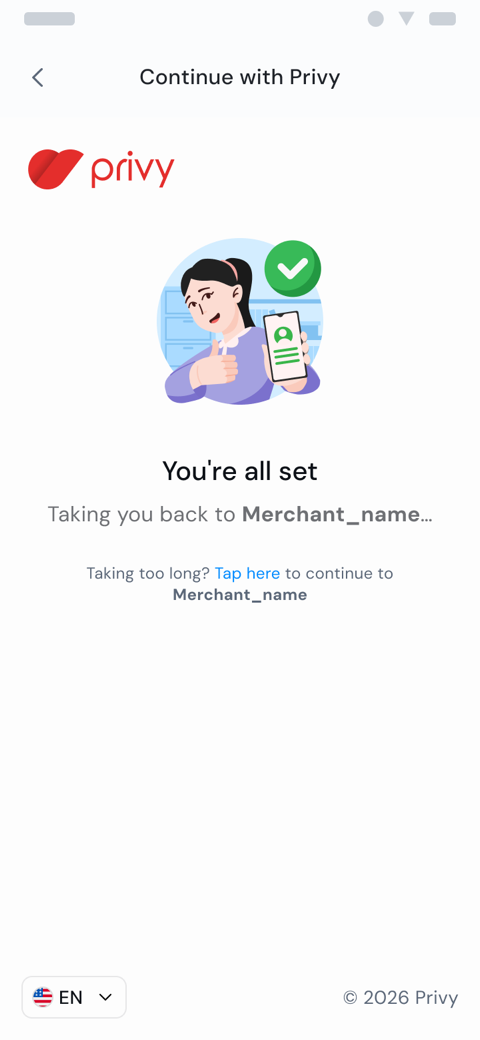
| 5 | You're all set | privy:success |
1. Identifier input
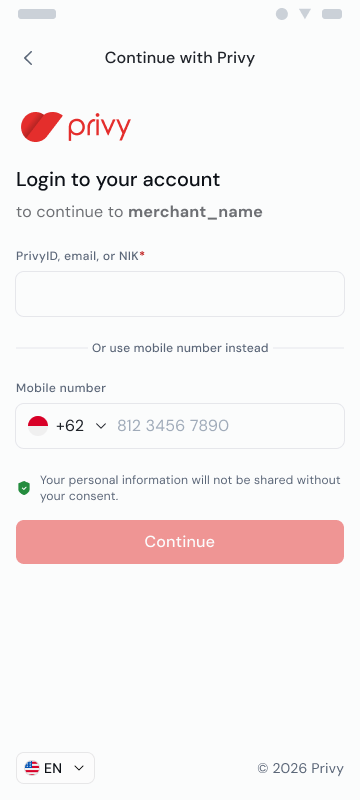
The widget opens on Login to your account. The screen shows the merchant display name. The user enters one identifier. Each identifier works for every merchant. The identifier does not change the data package.
| Field | Accepts |
|---|---|
| PrivyID, email, or NIK | A PrivyID, the email address registered to the Privy account, or a 16-digit NIK. |
| Mobile number | The mobile number registered to the Privy account. The country-code selector defaults to Indonesia (+62) and supports international numbers. |
Continue becomes active after the user enters an identifier. If Privy finds the identity, the widget starts two-factor authentication: a face match first, then an OTP. If no registered identity matches, the widget shows an error on this screen.
The user can change the widget language from the selector at the bottom of each screen.
2. Liveness and face match
Privy first confirms that a live person is in front of the camera. Then Privy compares that face with the face recorded for that identity. The widget moves through four stages:
| Stage | What happens |
|---|---|
| 2.1 Preparation | The widget explains the step and shows tips: good lighting, the whole face visible, no other person behind, and neat dress. When the user taps I'm ready!, the user agrees to the Terms of Use and Privacy Notice. |
| 2.2 Preparing the camera | The camera opens with a blurred preview and a face guide. The widget guides the user into position. |
| 2.3 Face capture | The widget gives live prompts and captures the face. Face matched! confirms that the face is correctly positioned and captured. |
| 2.4 Comparing | Privy compares the selfie from liveness with the face recorded for that identity. |
During stages 2.2 and 2.3, the user can tap Cancel to leave the capture. A countdown shows at the top right of each screen.
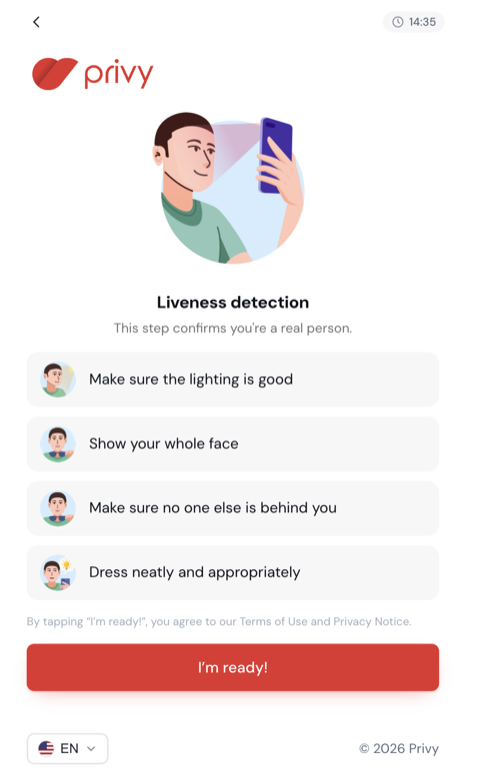
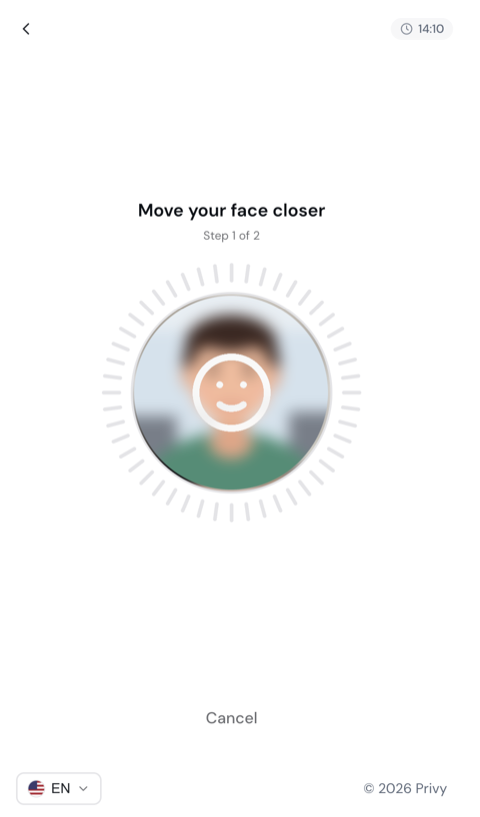
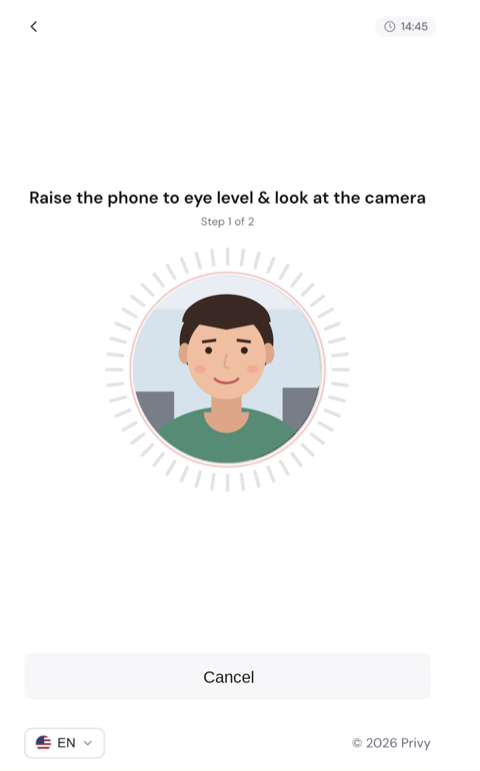
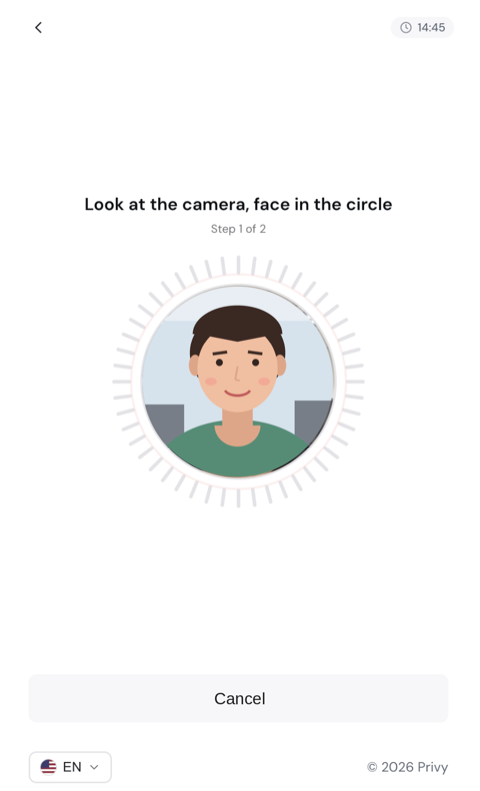
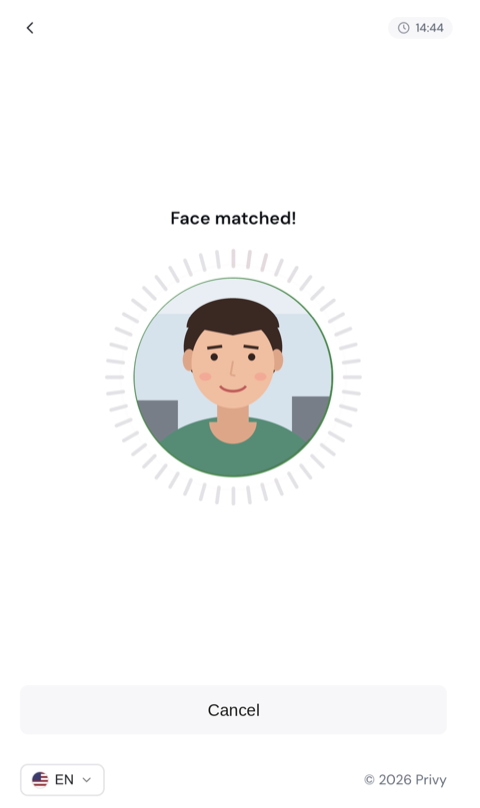
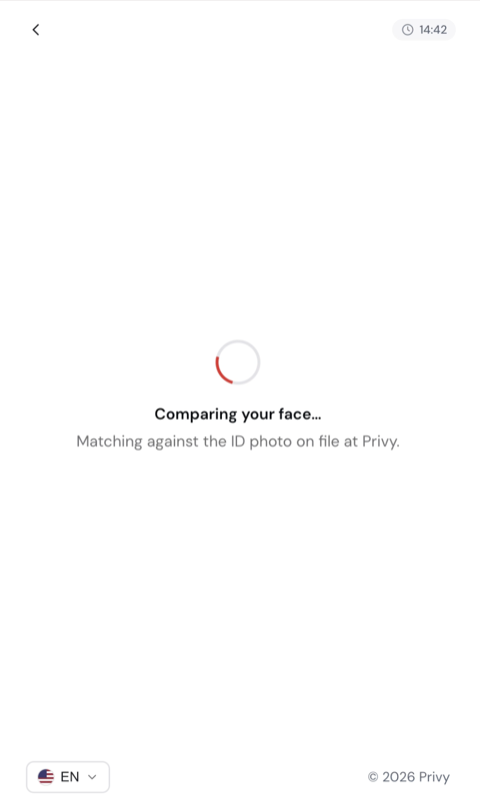
The faces on these screens are illustrations. If the faces match, the widget goes to the OTP step.
The widget requests the camera when the liveness capture starts. The host must permit it. Add
allow="camera"to the iframe, and declare the camera permission in a native application. See Camera and Permissions. A missing permission stops the journey at step 2.
2a. Face does not match
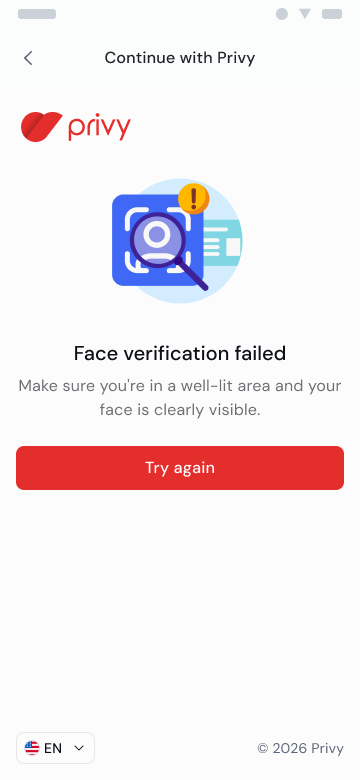
If the face match fails, the widget shows Face verification failed. The screen tells the user to move to a well-lit area and keep the face clearly visible. Try again starts liveness again.
| Attempt | Result |
|---|---|
| First or second failure | The user can try again in the same session. |
| Third failure | The session is blocked and cannot continue. The widget sends privy:error. Privy policy decides whether the user can start a new session. See the recovery guide. |
3. OTP
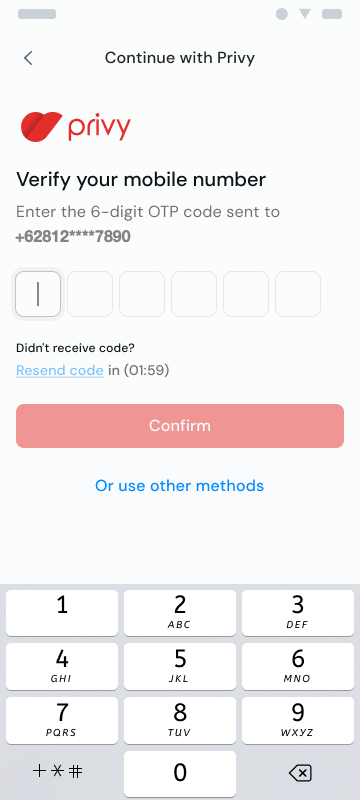
After a successful face match, Privy sends a 6-digit OTP. WhatsApp is the default channel. The screen shows where Privy sent the code, a countdown before Resend code becomes available, and Confirm.
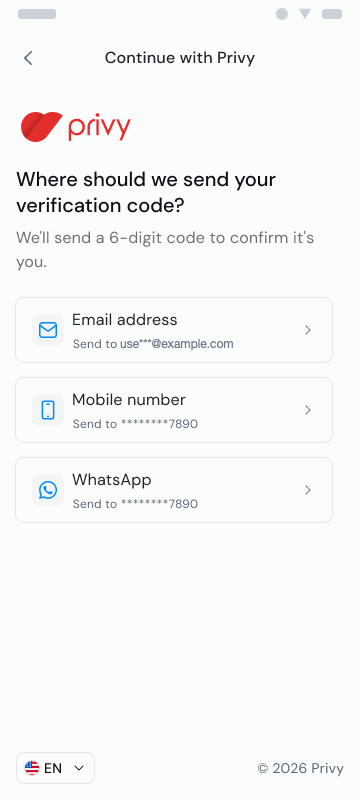
Or use other methods opens a channel picker. The user can receive the code by email, text message, or WhatsApp. The destinations are masked. They are the contact details registered to the Privy account of the user. After OTP confirmation, the widget shows the consent screen.
Privy sets the default OTP channel for each merchant during provisioning. If the merchant gives no preference, the default is WhatsApp.
4. Consent
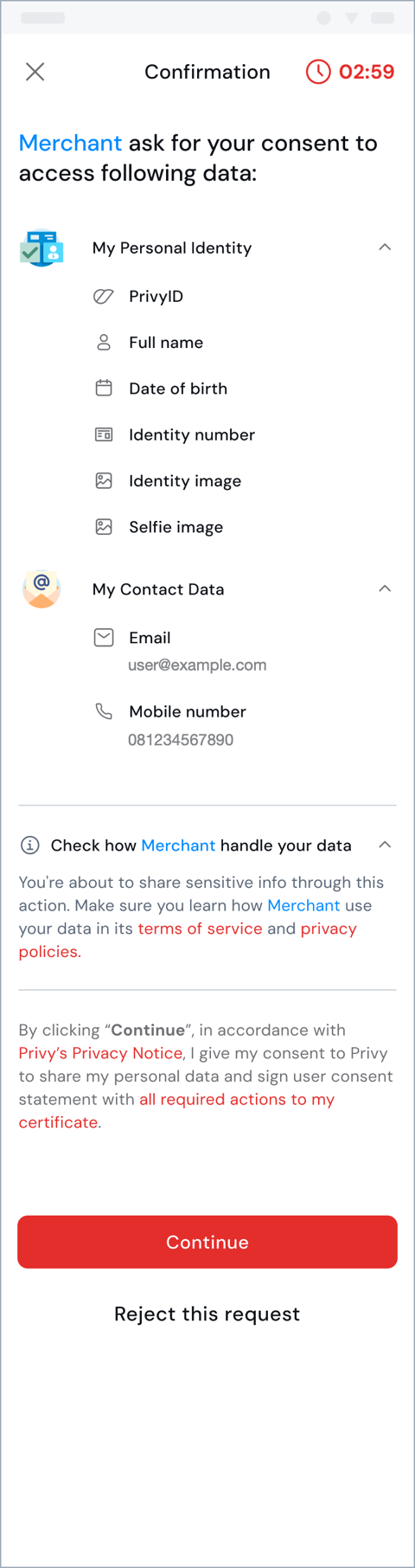
After OTP confirmation, the widget shows Confirmation:
| Element | Description |
|---|---|
| Countdown | The time left to respond, at the top right. The default is 5 minutes. Privy can configure it for each merchant. |
| Requested data | The data sections that the merchant receives. My Contact Data is my_contact_data: email and mobile number. My Personal Identity is my_identity: PrivyID, full name, date of birth, identity number, identity image, and selfie image. It appears only with the Identity package. |
| Merchant data policy | "Check how merchant handle your data" links to the merchant terms of service and privacy policy. |
| Consent statement | The user consents, under the Privy Privacy Notice, to Privy sharing the data. |
| Actions | Continue shares the data. Reject this request shares nothing. |
Give your terms-of-service and privacy-policy URLs to Privy, so that the consent screen can link to them. Users are more likely to continue when they can see how the merchant uses their data.
4a. Request rejected or timed out
If the user taps Reject this request, or does not respond before the confirmation window ends, no data is shared. The widget shows No data shared and gives control back to the merchant.
| Case | Widget event | Retry |
|---|---|---|
| The user rejects the request. | The widget sends privy:cancel. | New session. The user starts again from step 1. |
| The confirmation window ends. | The session expires. The widget sends privy:error with session_expired. | New session. The user starts again from step 1. |
5. Success
When the user taps Continue on the consent screen, the widget shows
You're all set. At the same time, the widget sends privy:success with the
exchange_code. The event goes to the host page, or through the native bridge
in a WebView.
The widget does not redirect the browser. The host page listens for
privy:success and closes or hides the widget. Then it sends the exchange code
to the merchant backend and moves the user to the next merchant screen.
"Tap here to continue" on this screen and "Tap here to go back" on step 4a operate the same way. They give control to the host through the widget event.
What the merchant builds
Privy owns each screen on this page. The merchant owns the content around them. Widget events control only the user interface. Base business decisions on the verified JWT.
| Moment | Merchant responsibility |
|---|---|
| Before the widget | An entry point that asks the merchant backend to create a session. Use a button such as Login with PrivyID that follows the Privy button guideline. |
| While the widget is open | A full-height iframe or WebView with camera permission. Keep session_id and expires_at on the backend. |
On privy:success | Close the widget. Send exchange_code to the backend, verify the JWT, and then show the next merchant screen. |
On privy:cancel | Close the widget. Offer a way to start again with a new session. |
On privy:error | Close the widget. For session_expired, offer to start again with a new session. For a blocked session, follow the recovery guide. |