# Privy Button
The user journey starts from a button on the merchant page. Use the PrivyID
button, so that users recognize PrivyID before the widget opens.
The button text is flexible and follows the action in your product. The text
must always include "with PrivyID".
## Button variants
Use one of the three button styles, as applicable to your design and
background.
Button variants for light backgrounds.
| Variant | When to use |
| --- | --- |
| Primary, solid | On a light background, when the button must stand out. |
| Primary, outlined | When the button must be more subtle, but still prominent. |
| Neutral | When the button must blend with the page, but keep the brand presence. |
On a dark background, use these styles:
Button variants for dark backgrounds.
## Button copy
The button text shows the action that the user does in your product. You can
use wording such as "Continue with", "Login with", "Sign In with",
"Register with", or "Apply with". The mandatory part is "with PrivyID".
These examples are only illustrations. Make the copy match the user journey of
your product.
Button copy examples. The action text can change, but "with PrivyID" must always follow it.
## Typography
Google Sans Flex is the recommended typeface for the PrivyID button. You can
also use the existing UI typeface of your product, for consistency with your
interface.
If you use another typeface, select a clear, legible sans-serif font. Keep the
recommended text size, weight, and proportions of this guideline.
## Layout and color
Keep the clear space, alignment, and proportions of this guideline.
| Element | Value |
| --- | --- |
| Button color | `#E60034` |
| Text size | 16 px (example) |
| Logo height | 2 × text height |
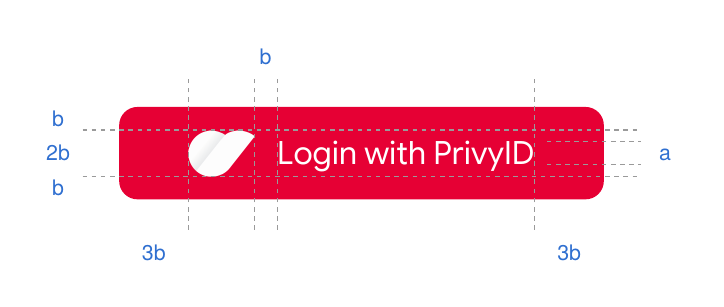
| Horizontal padding (left and right) | 3b |
| Vertical padding (top and bottom) | b |
Button colors.
## Radius
Use a corner radius that fits your design. For example, use 8 px, or a fully
rounded button (100 px or 50%).
Radius examples: 8 px and fully rounded.
## Proportions
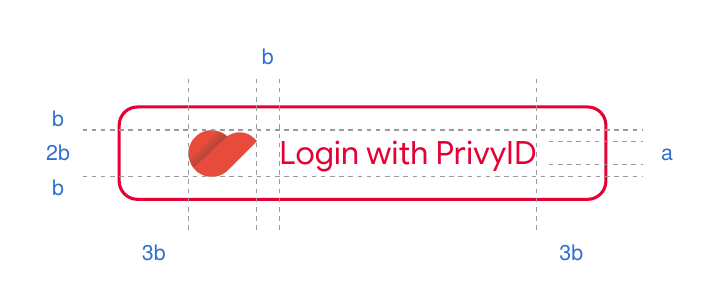
Keep these ratios between the text, the logo, and the button edges:
| Measure | Rule |
| --- | --- |
| a | The height of the button text. |
| b | The space above and below the logo, and the gap between the text and the logo. |
| 2b | The height of the logo: two times the text height. |
| 3b | The space between the button edge and the content, on the left and the right. |
Solid variant.Outlined variant.
## Logo asset
Contact the Privy team for the PrivyID logo asset for the button.